
by Pavutu · Windows
Table to Workbook — turn document tables into editable Excel files
Check a table from a PDF, document or image against its source and turn it into an editable XLSX on your PC.
Get the app

 (opens the larger image)
Watch the trailer
Open, check, save
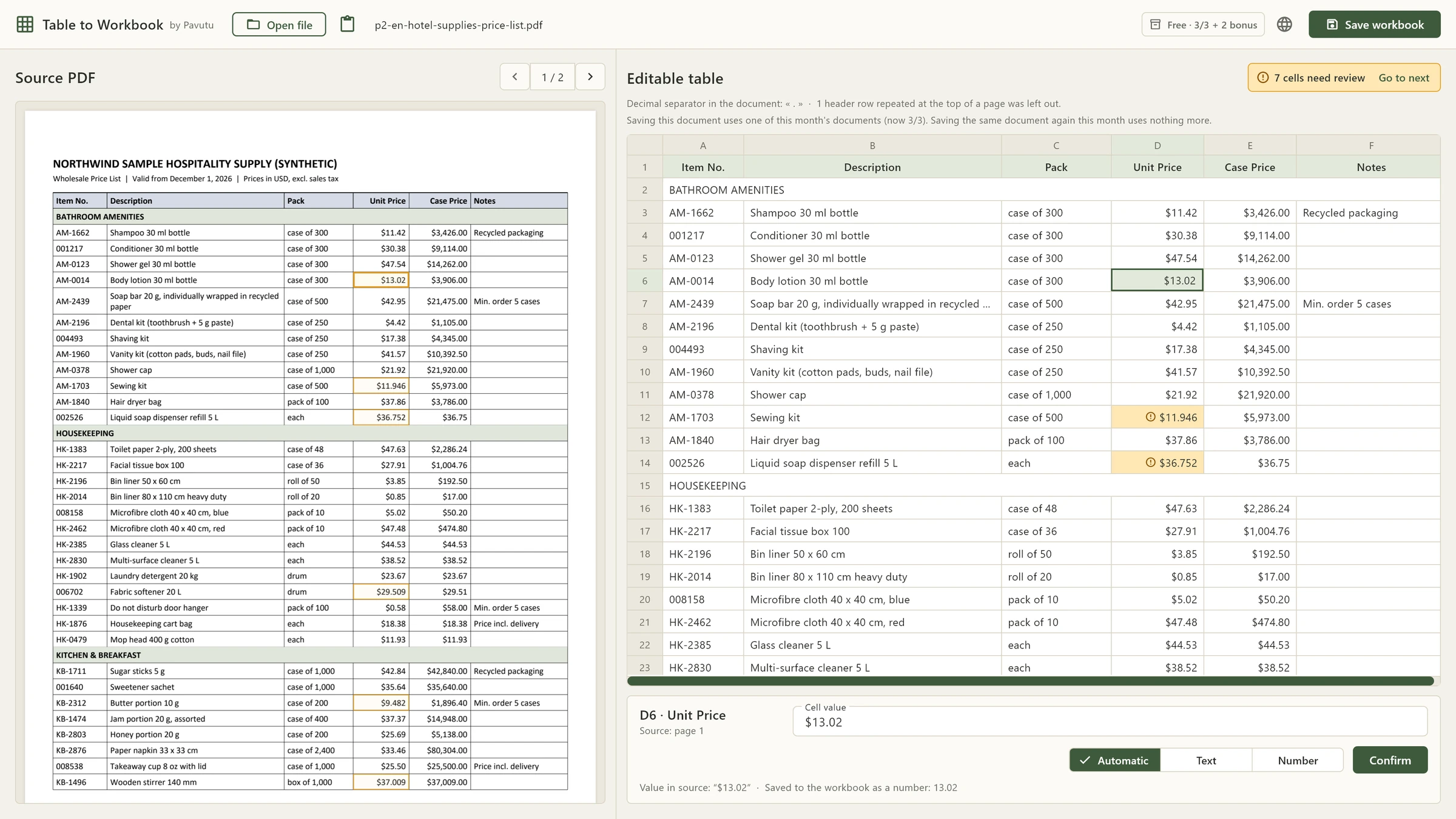
Instead of retyping a supplier's price list or a report, open the file, review the table the app has taken from it and save a workbook you can keep working in.
The screenshots come from the Windows app; the documents in them are made-up samples. Select an image to see it larger.
-
Open your file
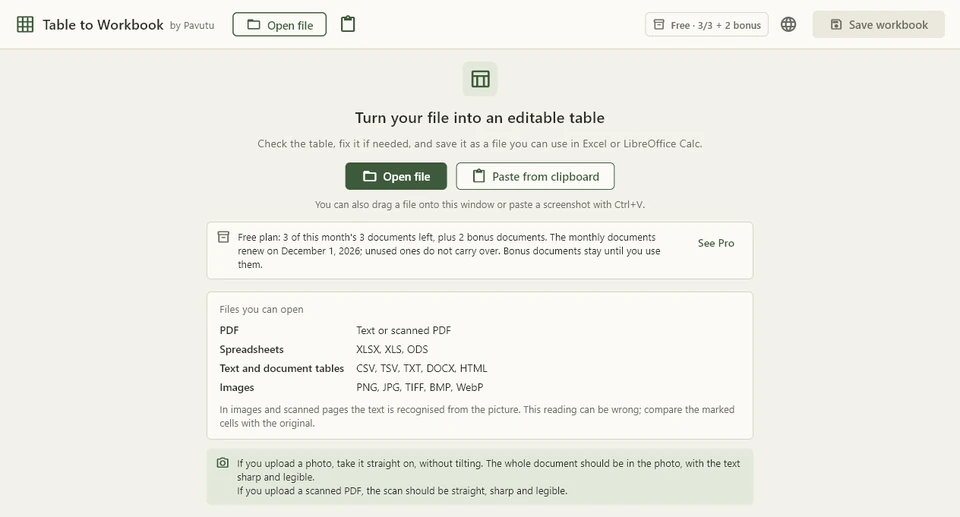
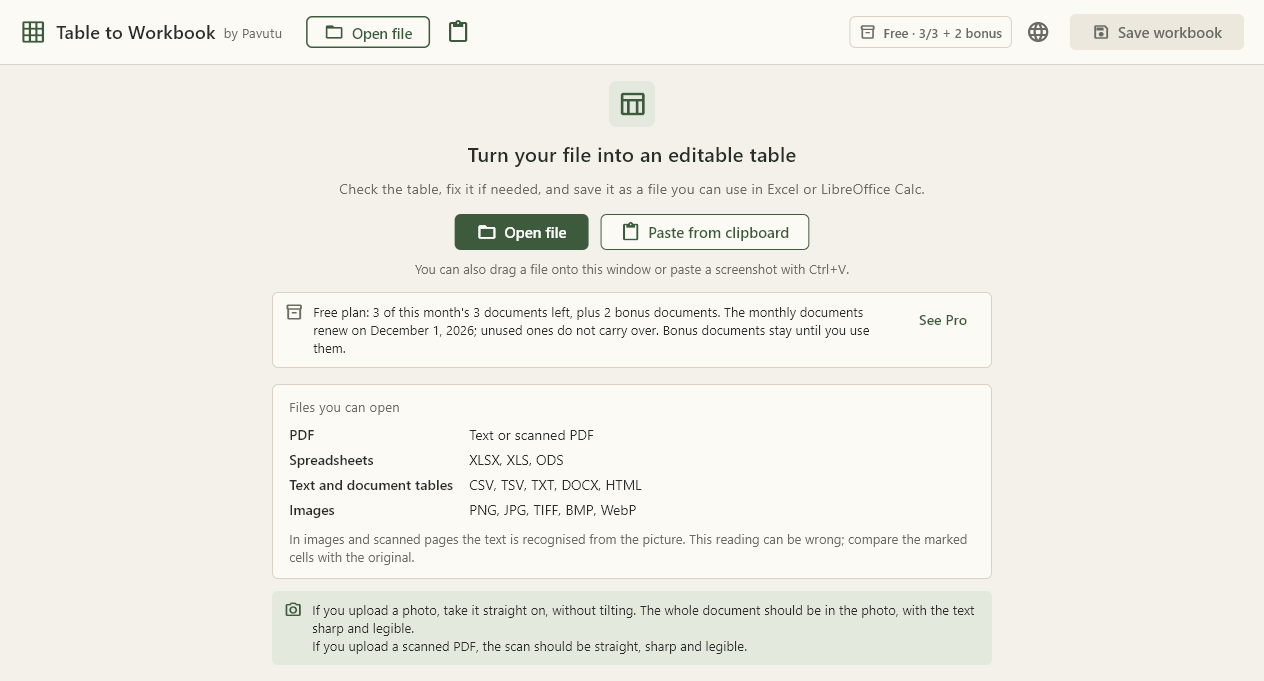
Choose a file, drag it onto the window or paste a screenshot with Ctrl+V. The start screen lists the file types you can open and shows how many free documents you have left this month.
 (opens the larger image)
The start screen -
Check and correct cells
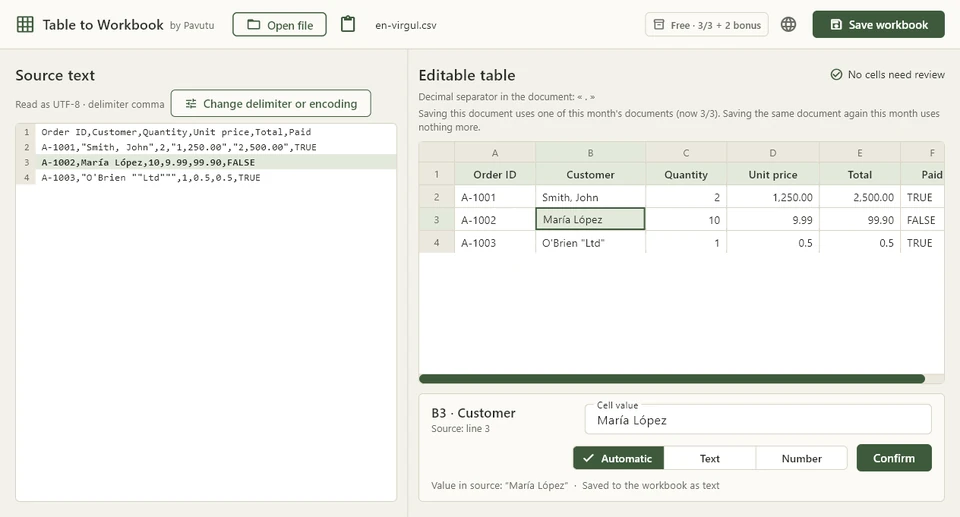
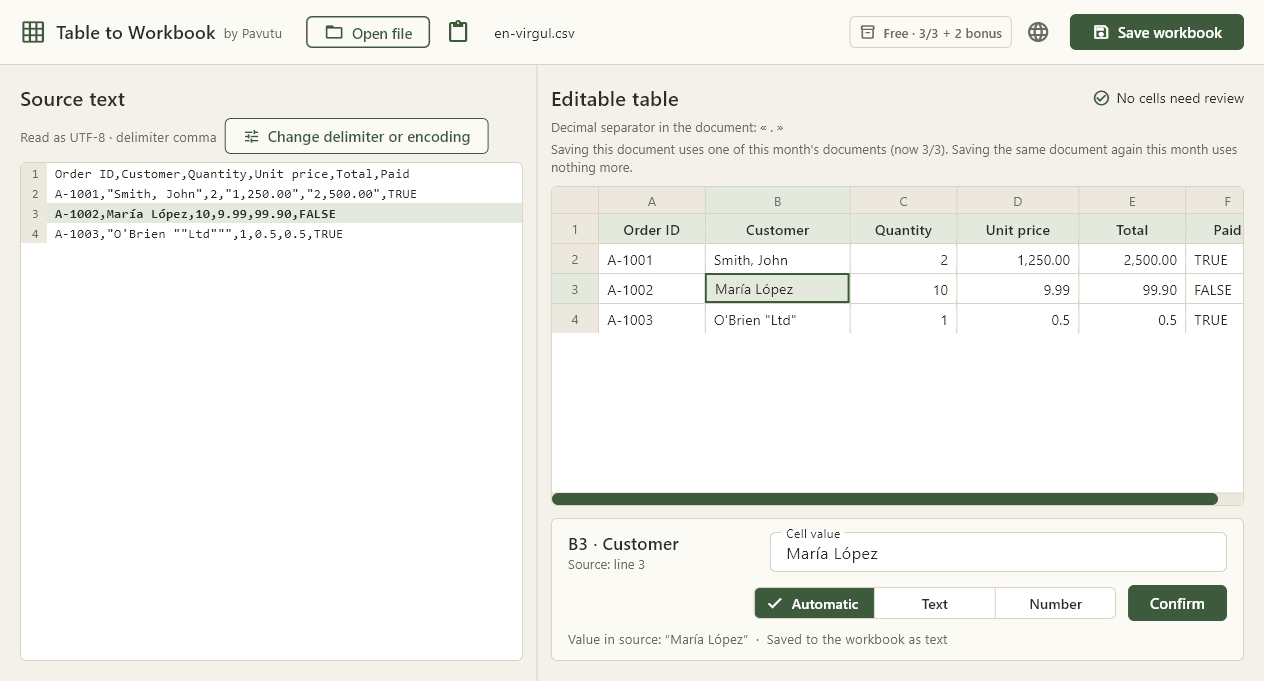
Select a cell to see what the source says and correct it if needed. Choose whether a value goes into the workbook as text or as a number; codes with leading zeros stay as they are.
 (opens the larger image)
Editing a CSV file
In PDFs and images, cells that need a second look are marked and you can go through them one by one. A cell without a mark isn't a guarantee: compare important prices and codes with the source.
Continue in Excel or LibreOffice Calc
The result is a standard XLSX workbook. Open it in Excel or LibreOffice Calc to sort, calculate or, for example, add a percentage to prices. Table to Workbook isn't a full spreadsheet editor, and row heights or formatting may look slightly different from one program to another.
Files you can open
PDFs and documents
PDFs with text: every table in the file, in the order of the document, one below the other on a single sheet.
DOCX (Word 2007 and later) and local HTML pages: the real tables in the document. Scripts are not run and nothing is downloaded.
Spreadsheets and text tables
XLSX, XLS (Excel 97–2003) and ODS: each sheet becomes its own tab, with its name and order kept.
CSV, TSV and delimited TXT: the delimiter and the encoding are detected; when the app isn't sure, you choose with a preview.
Images and scanned PDFs
PNG, JPG, TIFF, BMP and WebP, and scanned or mixed PDFs, are read with the text recognition (OCR) built into Windows, on your PC.
This reading is experimental and works best with straight, sharp and legible documents.
OCR is experimental. Compressed images, faint or borderless tables and currency symbols may be read wrongly or missed. Photograph documents straight on, with the whole page in the frame; slanted photos and scans are not straightened.
What carries over
In spreadsheet files, supported formulas — cell and range references, arithmetic and common functions such as SUM, AVERAGE, MIN, MAX, ROUND and IF — are written as working formulas. Any other formula is flagged, and the file is saved only if you choose to keep those cells as fixed values. Not all formatting is kept; charts, images, comments and macros are not transferred, and the app tells you how many items were left out.
Not supported: XLSM, XLSB, DOC, Apple Numbers, GIF, encrypted files, animated images and text laid out with spaces instead of a delimiter. File size and memory limits apply.
Free and PRO
Free
For occasional documents
- 3 documents a month, renewed on the 1st; unused ones don't carry over
- 2 one-time bonus documents on first use, kept until you use them
- Only a successful save uses a document; opening, checking and correcting don't
- Saving the same document again in the same month doesn't use another
- The same file types and the same reading as PRO
PRO
One payment, no monthly limit
- Removes the monthly document limit
- No subscription and no ads; future updates of this app are included
- Linked to your Microsoft account and valid on the Windows PCs where you sign in with it
- The same file types, reading and quality as the free version
- File size and memory limits still apply
PRO is bought in the app through the Microsoft Store, which shows the current price. Monthly documents are used first and bonus documents after them. The free count is kept on your PC for your Windows user and isn't shared between computers. Other Pavutu apps and versions for other platforms are not included in PRO.
Platform and privacy
Platform
Table to Workbook is a desktop app for Windows. There is no Mac or mobile version. It's available from the Microsoft Store.
- Windows
- Interface: English · Turkish · Spanish
Privacy
No account and no sign-in. Your documents are processed on your PC and the app doesn't send them to Pavutu. The clipboard is read only when you paste. Buying PRO and checking the licence go through the Microsoft Store.
Support
For questions, email support@pavutu.com. Please don't send confidential documents; a copy with sensitive details removed is enough.
FAQ
Will every value be read correctly?
Not always, especially in images and scanned pages. The app marks the cells it is unsure about, but an unmarked cell isn't a guarantee. Compare important values with the source before you use the workbook.
Can I use a photo of a document?
Yes, with experimental OCR. Take the photo straight on, with the whole document in the frame and the text sharp. Slanted photos are not straightened.
Are formulas kept?
In XLSX, XLS and ODS files, supported formulas are written as working formulas. Other formulas are flagged, and you decide whether to save those cells as fixed values. PDFs, images and documents contain values, not formulas.
What counts as a document?
Each different source document you save as XLSX in a month. Saving the same document again that month doesn't count, even if you renamed or moved the file. Opening and checking a file without saving doesn't count either.
Do I have to upload my documents?
No. Tables are read on your PC and the app doesn't upload your documents to a web service. Only buying PRO and checking the licence go through the Microsoft Store.
Which languages does the app support?
The interface is in English, Turkish and Spanish, and you can choose the language in the app. The content of your documents is not translated.
Where can I download it?
You can download Table to Workbook from the Microsoft Store (opens in a new tab).
Other tools by Pavutu
Other Pavutu tools: Static QR for QR codes and label sheets, Cut Planner for sheet cutting plans, Offline Scanner for scanning documents on your phone and Pavutu İş Araçları for quotes and receipts. See all our tools →