
by Pavutu · Windows app
Static QR — create QR codes and prepare label sheets
Create QR codes for links, text and Wi-Fi details on your Windows PC. With PRO, make codes in bulk from Excel or CSV and arrange them on label sheets.
Get the app

 (opens the larger image)
Prepare your QR code
Make a QR code for a link, text, Wi-Fi details, an email, an SMS, a phone number, a location, a contact card or raw data. The content is written into the code itself, and the code is made on your PC.
The screenshots come from the Windows app; the links and content are examples. Select an image to read the detail.
-
Free
Built-in icon
Put one of 17 built-in icons in the middle of the code and give the icon a colour of its own.
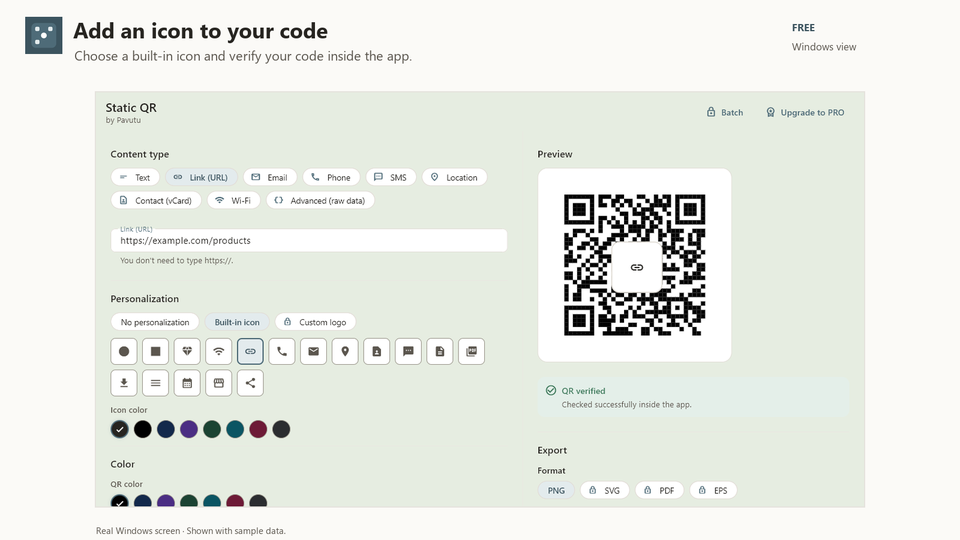 (opens the larger image)
Built-in icon · free -
PRO
Your own logo
Place your logo in the middle of the code and save it as a PNG of up to 1024 or 2048 px, or as SVG, PDF or EPS.
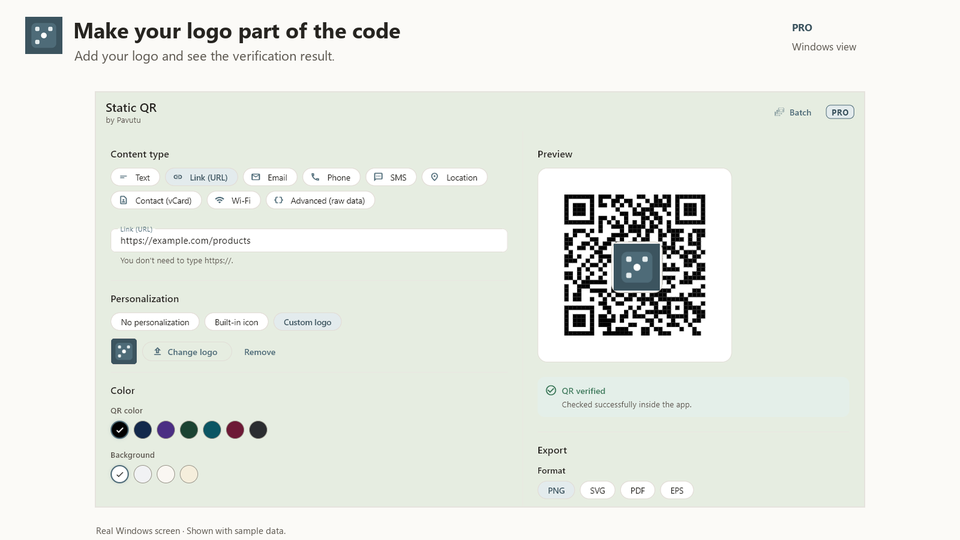 (opens the larger image)
Custom logo · PRO


The app checks each code by reading it back. A “QR verified” message doesn't guarantee that every phone or every print will read it.
Windows PRO
Create many QR codes at once
Prepare a whole set of codes from a list or a range of numbers. Save the result as separate files in a ZIP, as one PDF, or as a label sheet.
Batch creation is for links, text and raw data. Wi-Fi, contact cards and the other types are made one at a time on the main screen.
-
From an Excel or CSV file
Choose your file and pick the columns for the QR content and the file name. You see every row before you save, and your file stays on your PC.
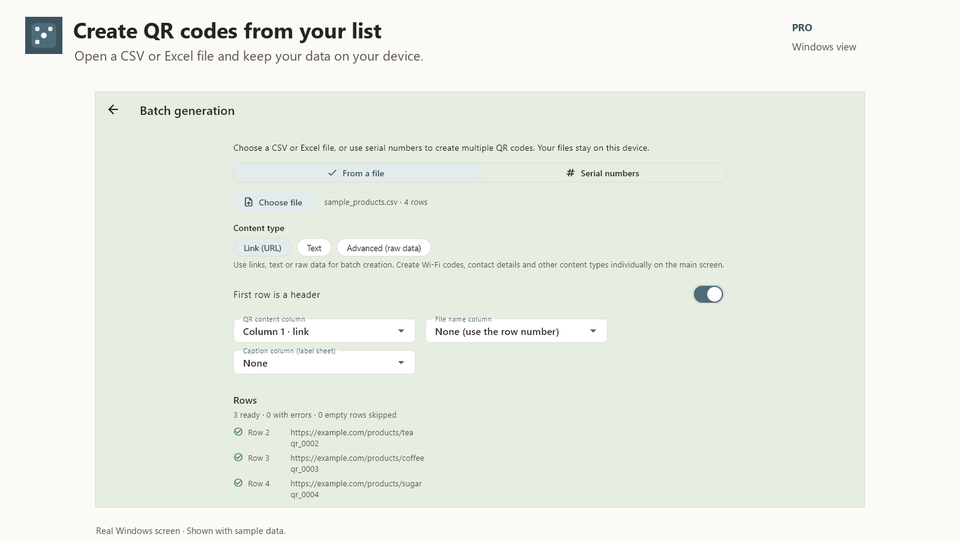 (opens the larger image)
Batch creation from a CSV file · PRO -
Numbered series
Enter the text to put in front, the first number and the last; for example, links from example.com/p/0001 to 0025 in order.
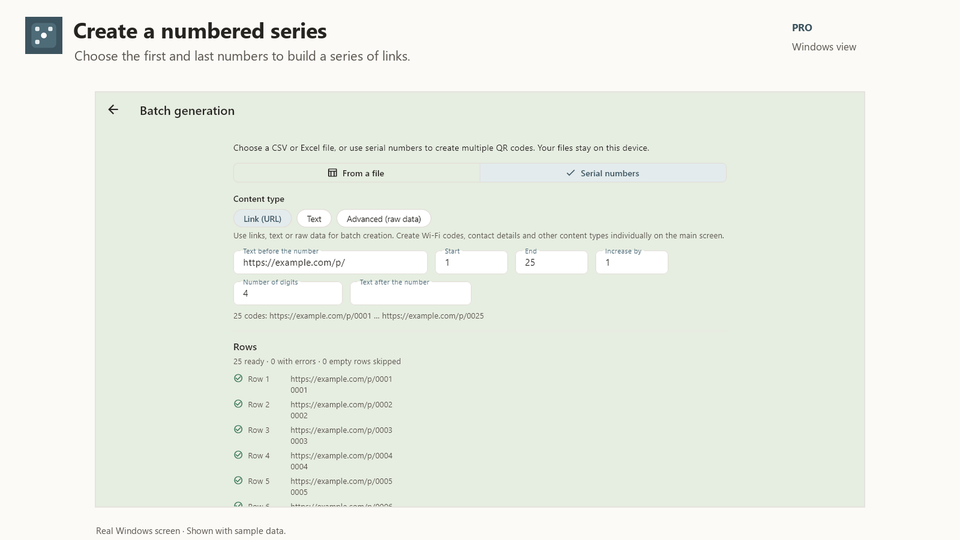 (opens the larger image)
Numbered series · PRO


Windows PRO
Prepare your label sheet
Arrange your codes on A4 or Letter pages. Enter the columns and rows, the label size, the margins and the gaps to match your label paper, and add a caption under each code if you like.
-
Set up the page
The preview follows your settings, so you can see how many labels fit on a page and how many pages you'll get.
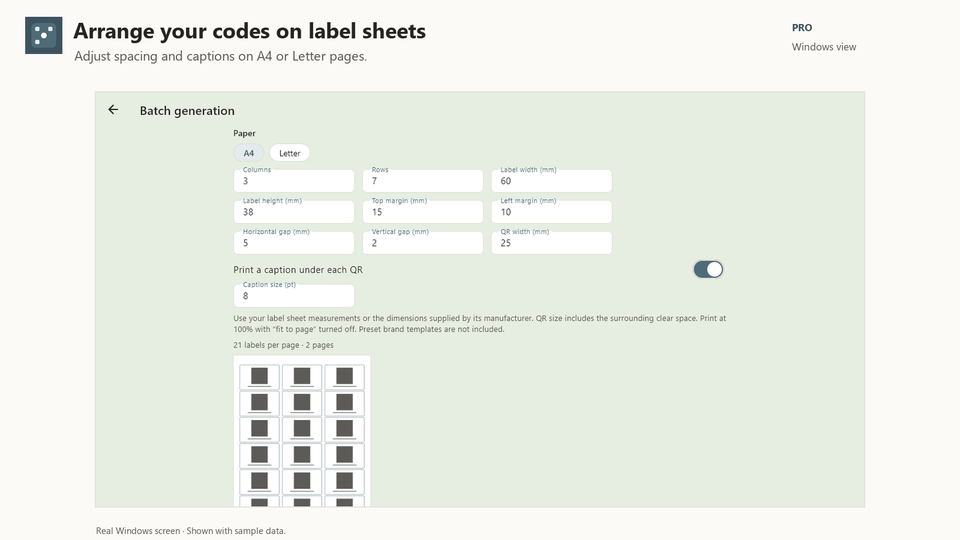 (opens the larger image)
Label sheet settings · PRO -
Check the result
After the run, see how many codes were created and how many weren't, then save the PDF.
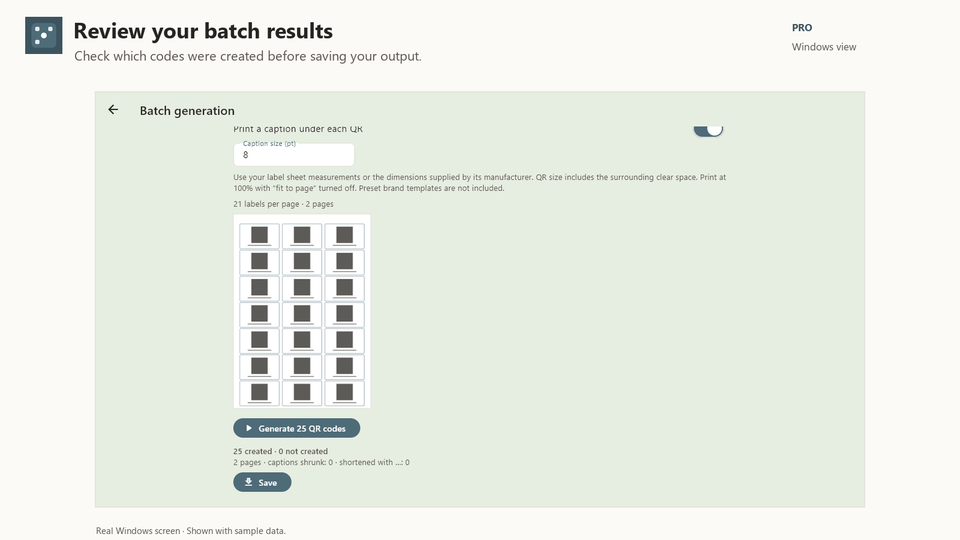 (opens the larger image)
Batch result · PRO


There are no ready-made brand templates (such as Avery). Take the measurements from your label paper and print at 100% scale.
Windows PRO
Get ready for print
Choose the print colours for PDF and EPS files, and see a starting size for the distance people will scan from.
-
Print colours
Choose screen colours (RGB), print colours (CMYK) or a single ink (spot colour). The values are approximate, so check the colour with your printer.
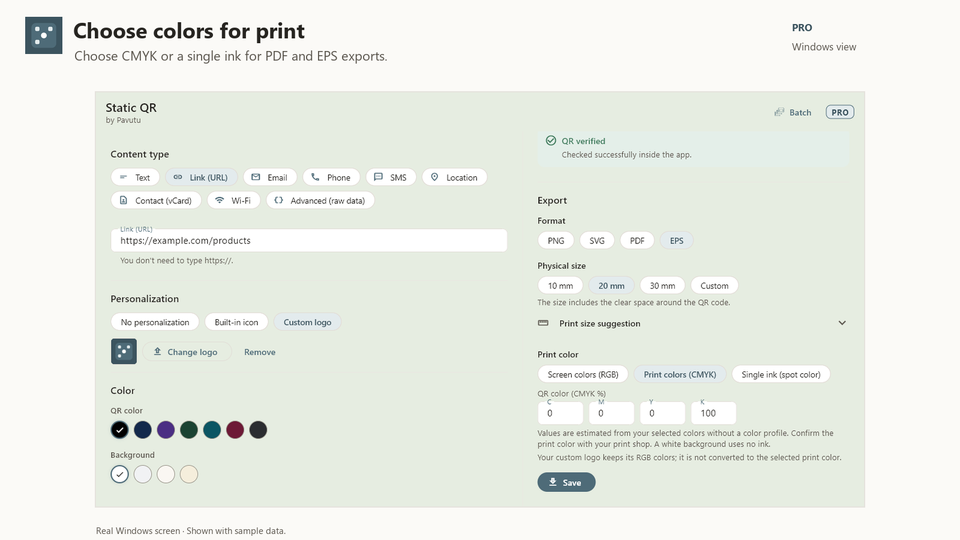 (opens the larger image)
Print colours · PRO -
Print size suggestion
Enter the scanning distance and the app suggests an approximate starting size. It's a suggestion, so make a test print before a large run.
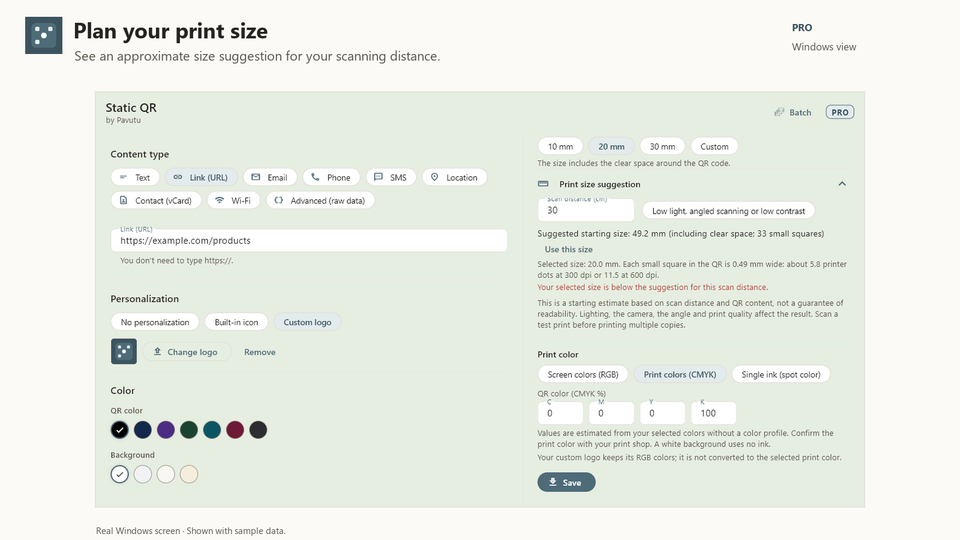 (opens the larger image)
Print size suggestion · PRO


Your custom logo keeps its own RGB colours; it isn't converted to the print colour you choose. Colour profiles (ICC) and a ready-made colour catalogue aren't included.
Free and PRO
Free
For single QR codes, always
- Links, text, Wi-Fi, email, SMS, phone, location, contact cards and raw data
- 17 built-in icons, with their own colour
- Watermark-free PNG, up to 512 px
- A read-back check inside the app
Windows PRO
Everything in the free version, plus:
- Your own logo
- PNG up to 1024 or 2048 px; SVG, PDF and EPS
- Print colours: CMYK or a single ink
- Batch creation from Excel or CSV, and numbered series
- A4 and Letter label sheets
- Print size suggestion
PRO (Lifetime Print Pro in the app) is a one-time in-app purchase through the Microsoft Store. There's no subscription, and the Microsoft Store shows the current price. If you already own Lifetime Print Pro, the new features are included at no extra cost. The Android version is in a closed test on Google Play, so there is no public purchase on Android.
The PNG size you choose is an upper limit; the file may be slightly smaller to keep the QR modules on whole pixels.
Platform and privacy
Platform
Static QR is an app you install on your Windows PC from the Microsoft Store. The Android version is in a closed test on Google Play; there is no public download yet. The interface is in English, Turkish and Spanish. For questions, email support@pavutu.com.
- Windows
- Interface: English · Turkish · Spanish
Privacy
No account and no sign-in. Your QR content, your logo and the CSV or Excel files you open are handled on your PC and aren't sent to Pavutu. On Windows, the PRO licence and purchase go through the Microsoft Store.
Static codes
The content is written straight into the QR code, so it doesn't rely on a Pavutu redirect service, and the code itself never expires. If the code contains a web address, that address needs to keep working. The content inside the code can't be changed later, and there are no dynamic QR codes or scan statistics.
FAQ
Is this a QR scanner?
No. Static QR creates QR codes; it doesn't scan them.
Can I change the link after I create the code?
No. The content is inside the code; if the link changes, you make a new code.
Do I need an internet connection?
Not to create or save QR codes. Buying PRO and checking the licence go through the Microsoft Store.
Which files can I use for batch creation?
CSV and Excel (.xlsx) files; in Excel, the first sheet is read. Older .xls files and password-protected files can't be opened.
Are there ready-made Avery label templates?
No. You enter the measurements from your label paper's manufacturer and print at 100% scale.
I already own Lifetime Print Pro. Do I pay again for the new features?
No. Batch creation, numbered series, label sheets, EPS, print colours and the size suggestion are included in your existing Lifetime Print Pro.
Which languages does the app support?
The interface is in English, Turkish and Spanish. The app can follow your system language, or you can choose one from the app menu. The content you put in a QR code is not translated; it goes into the code as you typed it.
Is there a subscription?
No. PRO is a one-time purchase through the Microsoft Store.
Is there a watermark?
No. Neither free nor PRO exports have a watermark.
Other tools by Pavutu
Other Pavutu tools: Offline Scanner for scanning documents, Cut Planner for sheet cutting plans, Pavutu İş Araçları for quotes and receipts and Pavutu Öğretmen for teachers' salary and extra-lesson pay in Türkiye. See all our tools →