
by Pavutu · Android app
Offline Scanner — turn your documents into PDFs on your phone
Take a photo of a page or add one from your gallery, fix the corners, put the pages in order and save them as one PDF. Core scanning is free, with no ads.
Status
Offline Scanner is in a closed test on Google Play. There is no public download yet.
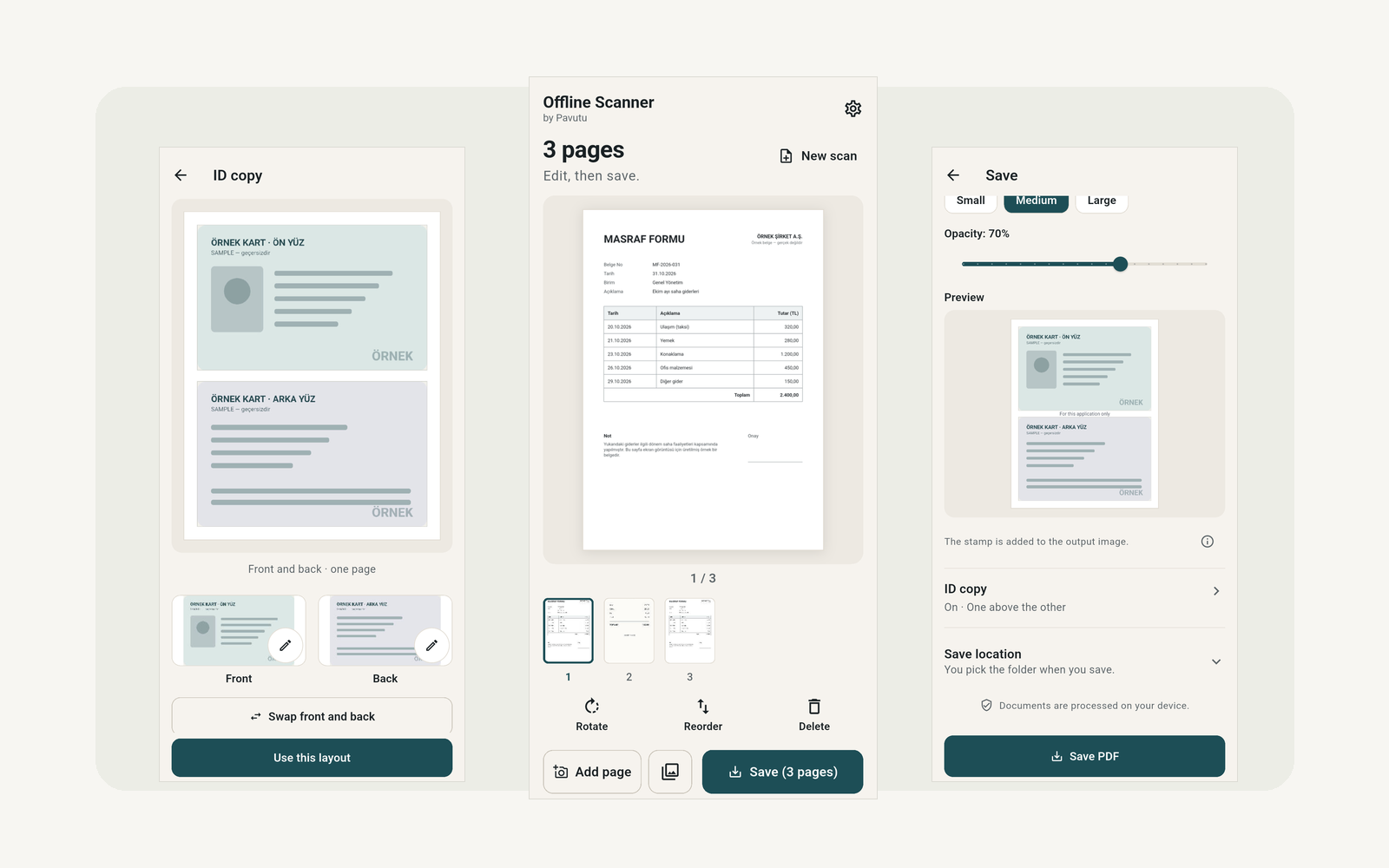 (opens the larger image)
Scan and arrange your pages
Take a new photo with the camera or add an image from your gallery. The app suggests the page edges; you decide the corners and the look.
Screenshots are from the Android app; the documents are samples. Tap or click a screenshot to read the details.
-
Free
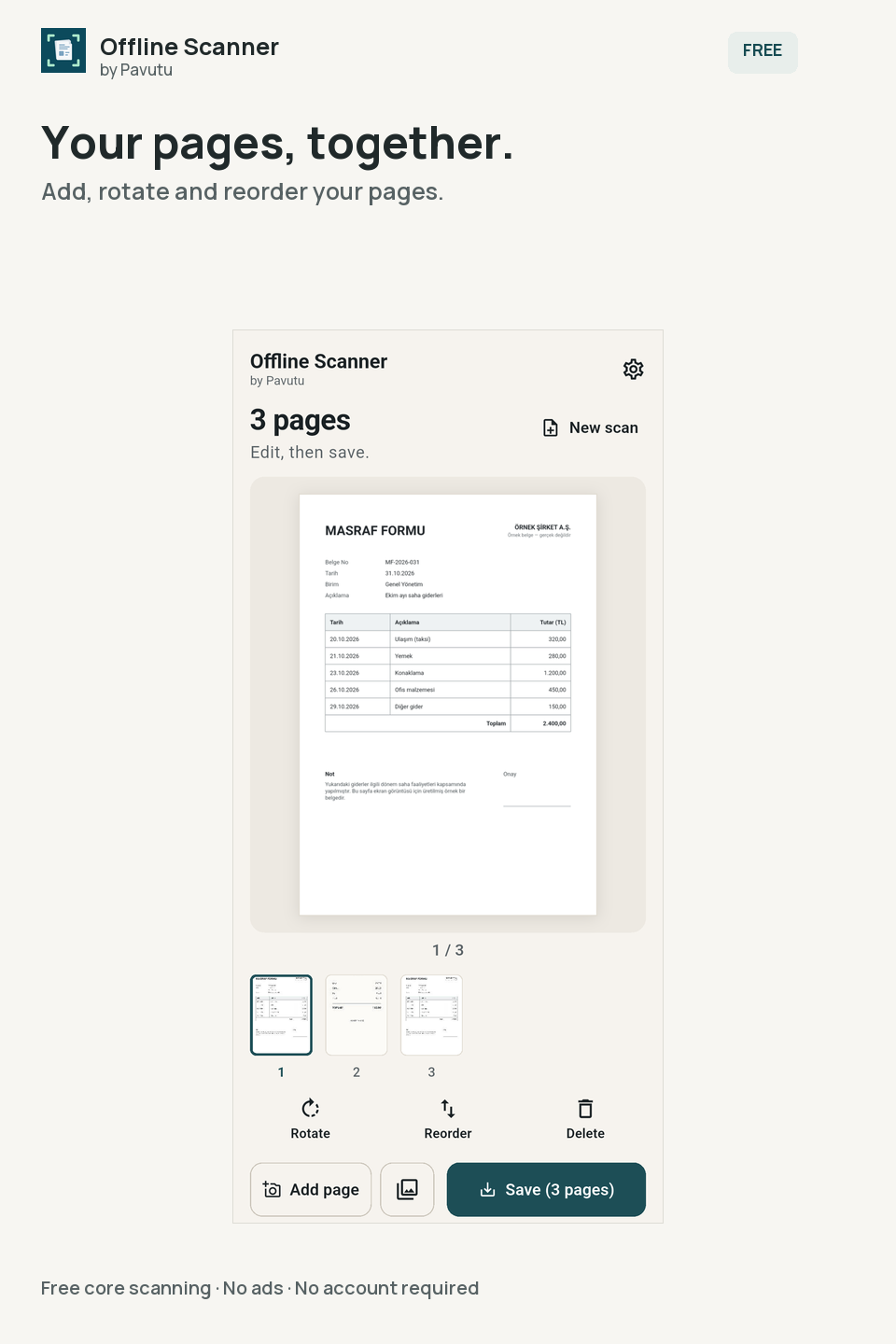
Add, rotate and reorder pages
Keep all the pages in one document. Rotate any page by 90°, drag pages into order and delete the ones you don't need.
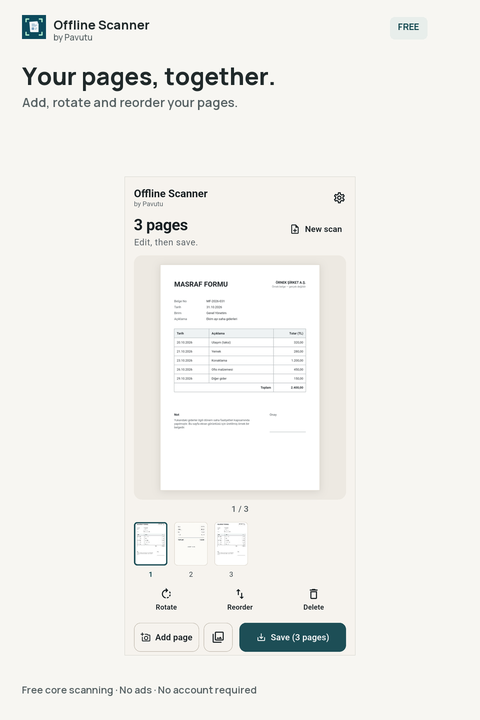 (opens the larger image)
Add, rotate and reorder your pages. -
Free
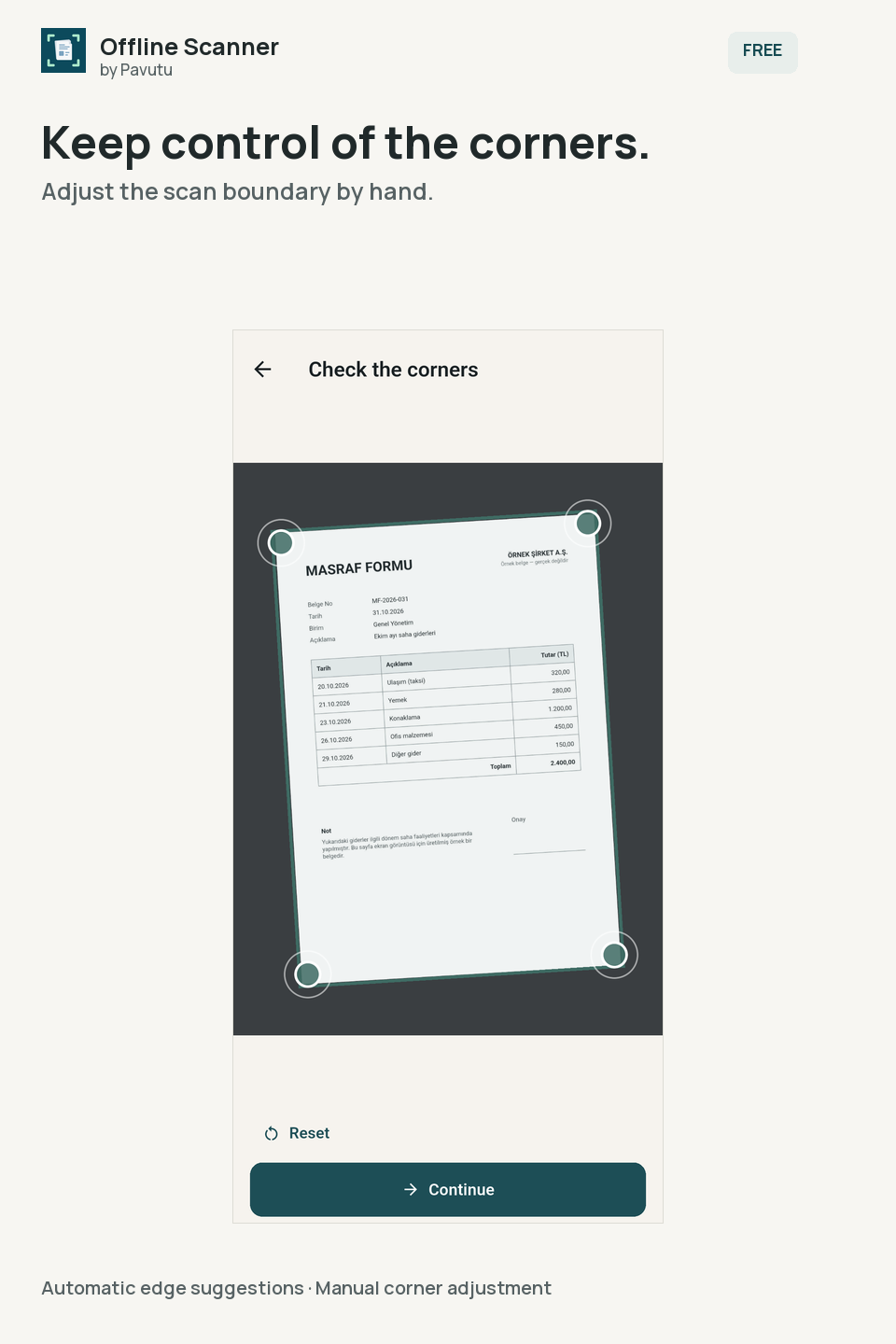
Check the corners
The app suggests the edges and tells you when it isn't sure. Drag the four corners to adjust them; a page taken at an angle is straightened.
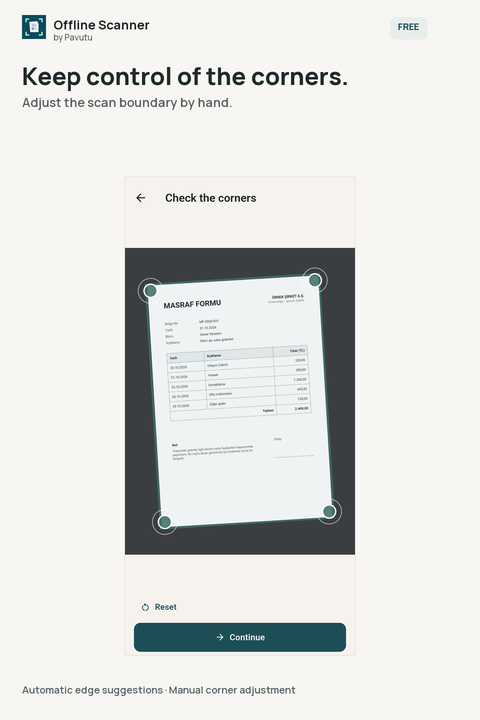 (opens the larger image)
Adjust the scan boundary by hand. -
Free
Natural or Document look
Natural keeps the page's colours. Document gives a greyscale look that brings the text forward. You choose by looking at the preview.
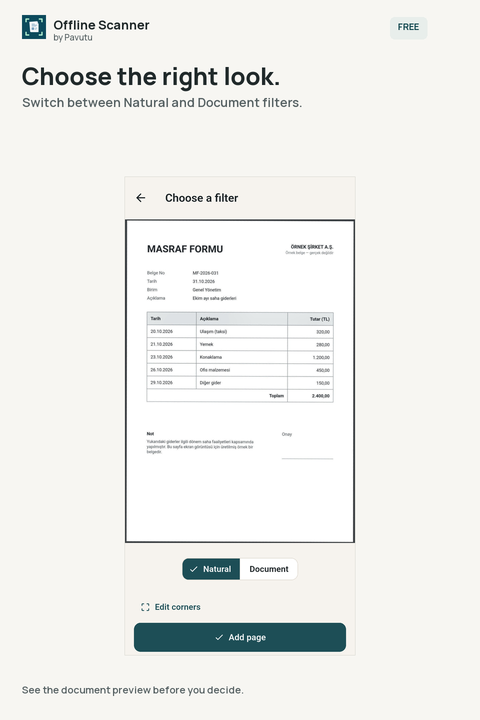 (opens the larger image)
Choose between Natural and Document.

Save and share
You choose the file name and where to save it with your phone's file picker. The app has no cloud sync.
-
Free
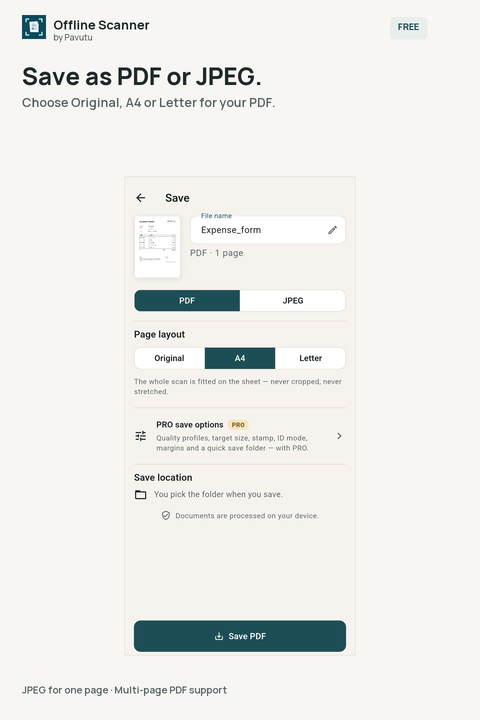
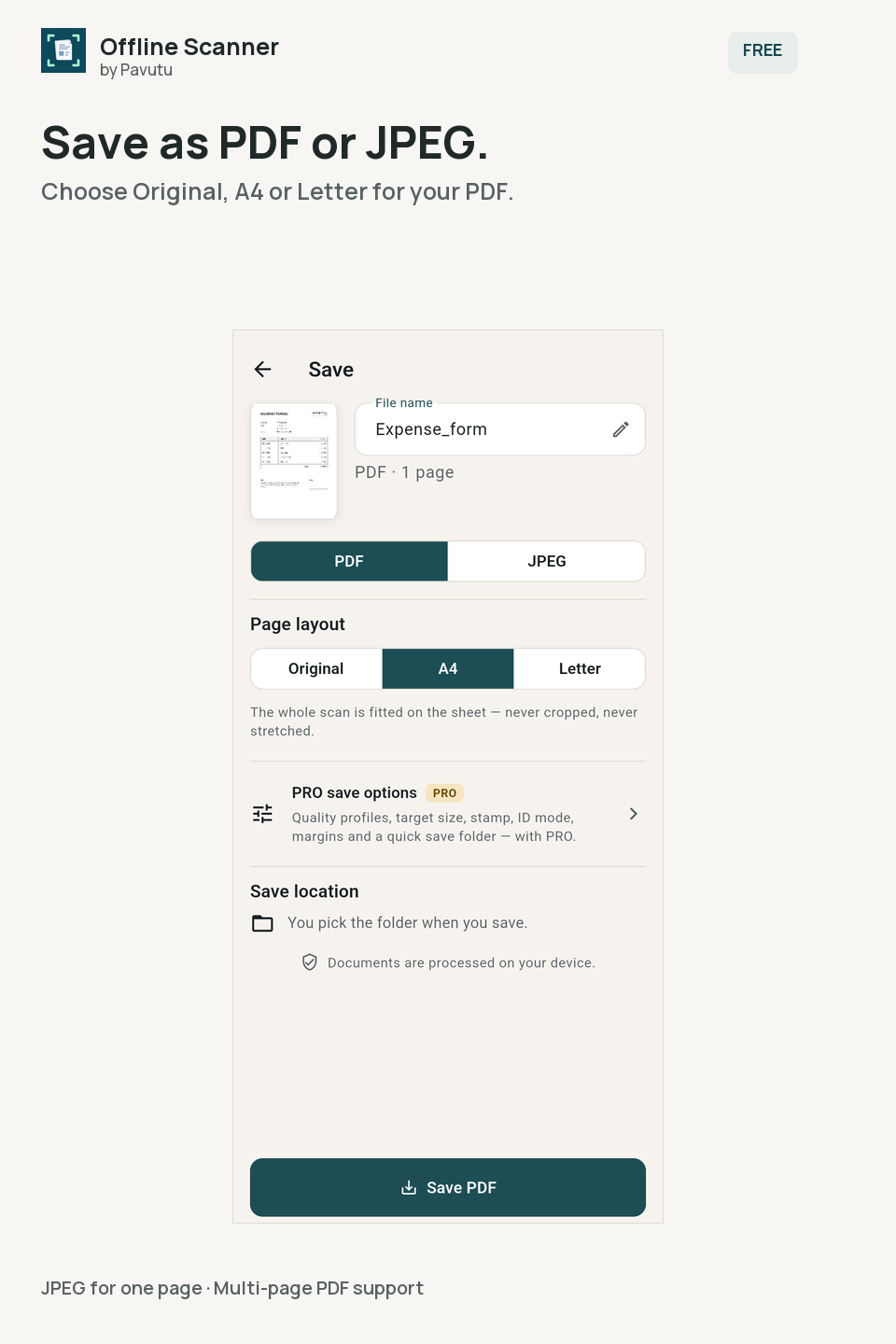
Multi-page PDF, single-page JPEG
Save several pages as one PDF, or a single-page scan as a JPEG. For a PDF, choose the page size: Original, A4 or Letter. The scan is fitted to the page without cropping.
 (opens the larger image)
Original, A4 or Letter for your PDF. -
Free
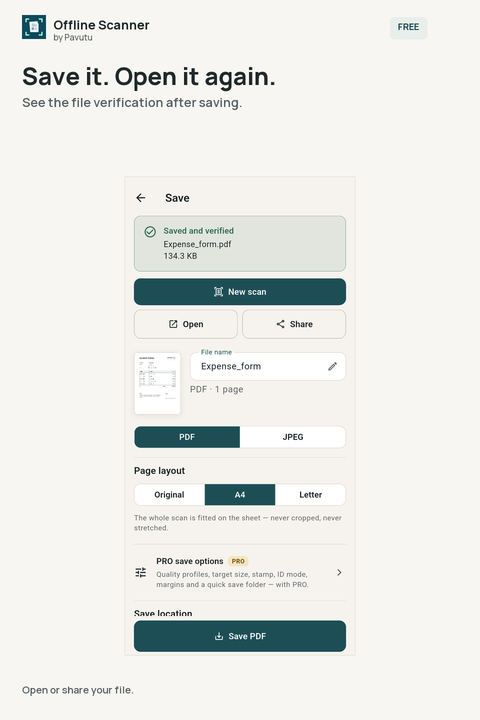
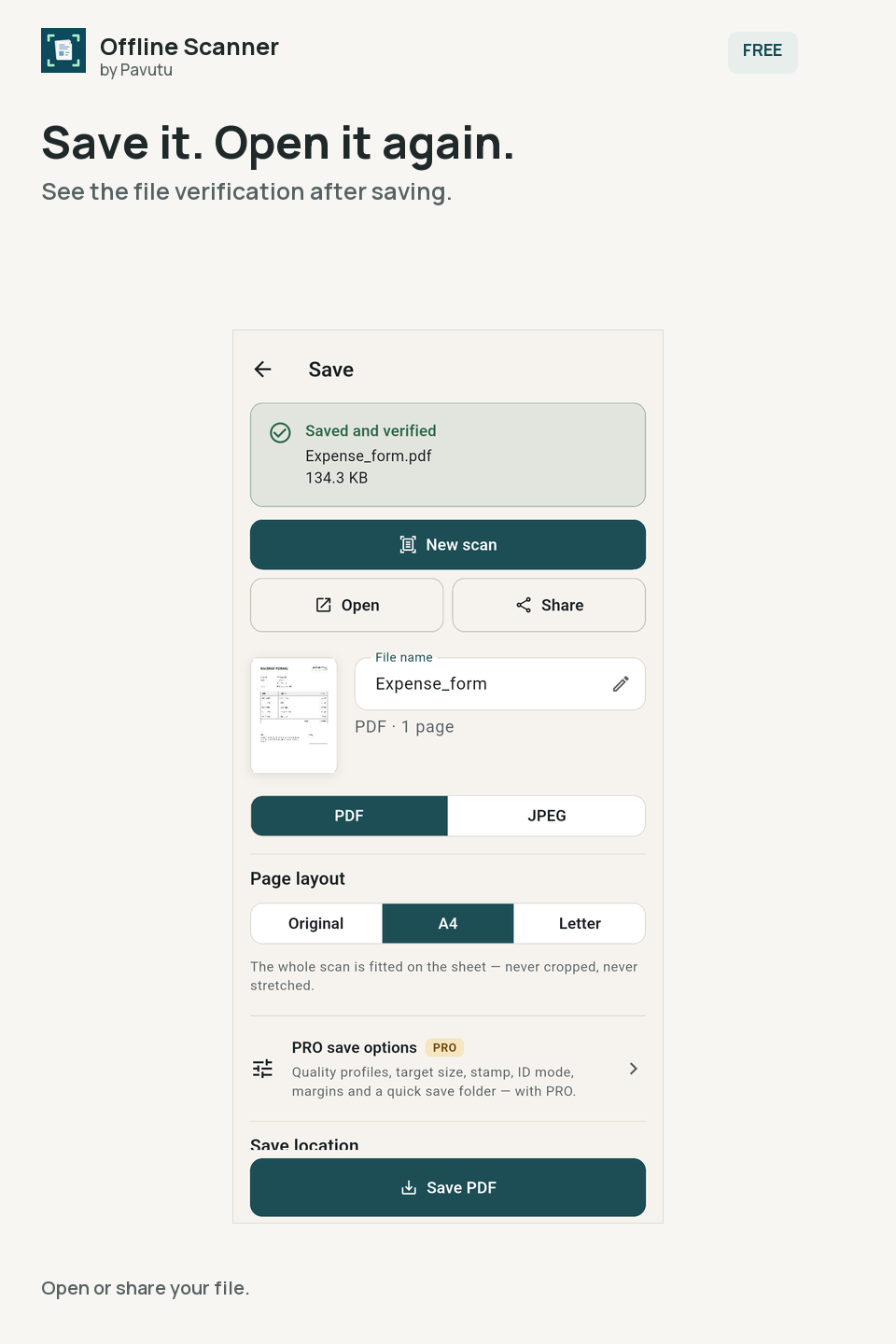
Saved and verified
After writing the file, the app opens it again to check it and shows you the result. You can open or share the file from the same screen.
 (opens the larger image)
File verification after saving.
Free
Recover an unsaved document
If the app closes before you save, you can restore the document or delete the draft the next time you open it.
The draft is kept only on this device, in the app's own storage, and is removed when you save or delete it. The very last change may not always be recoverable.
More options with PRO
PRO is optional and a one-time purchase. Core scanning stays free.
-
PRO
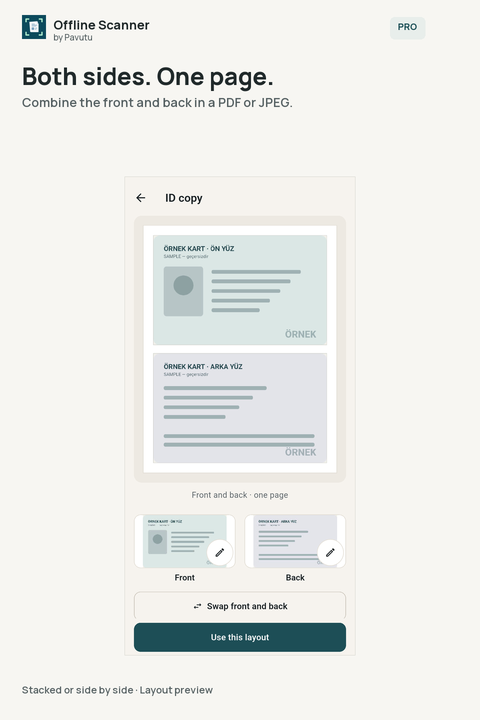
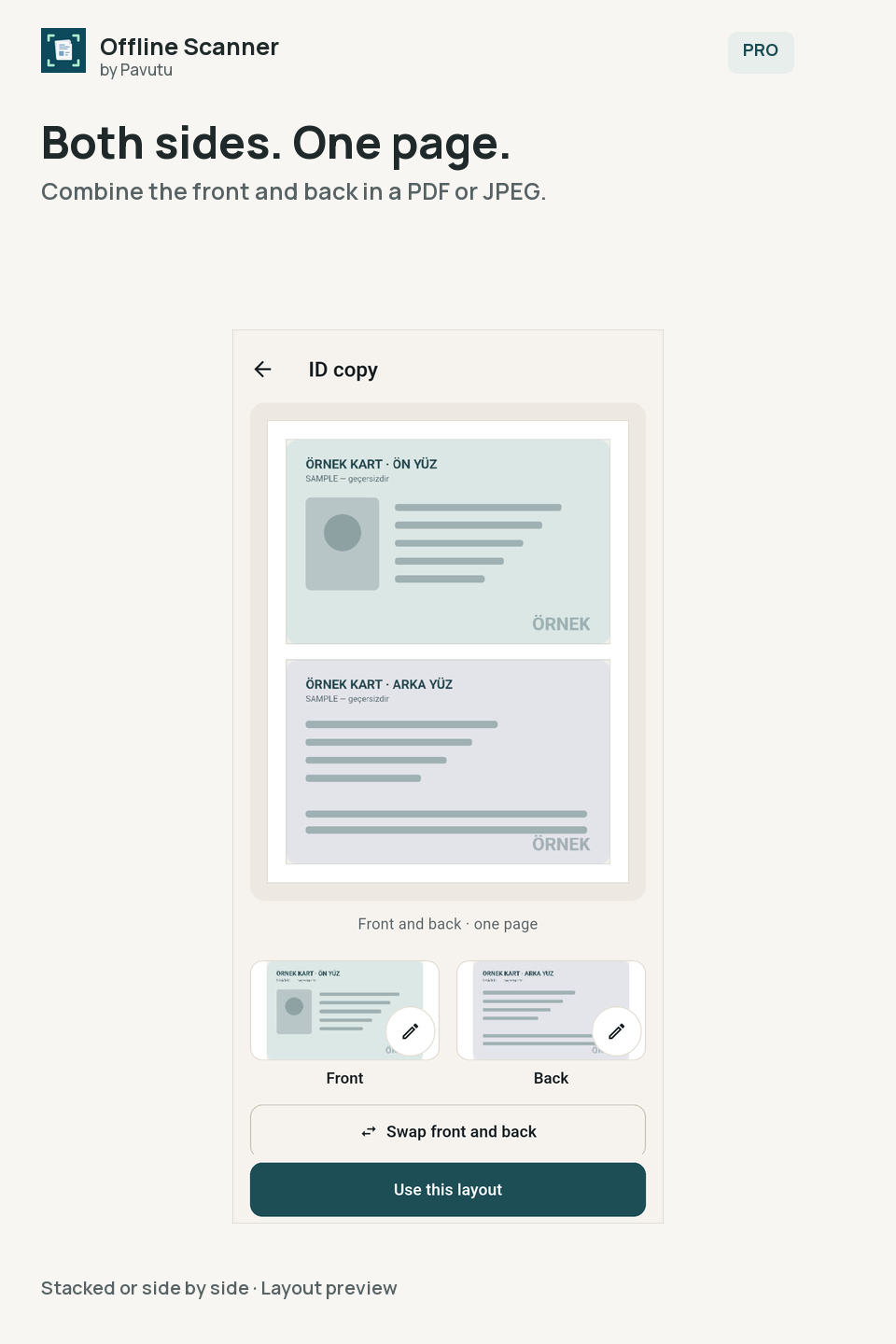
Both sides of a card on one page
Put the front and back of a card on a single PDF or JPEG page, one above the other or side by side.
 (opens the larger image)
Front and back on one page. -
PRO
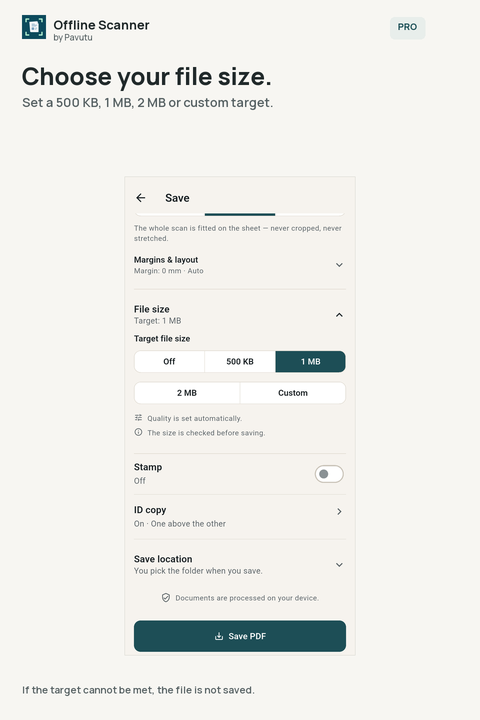
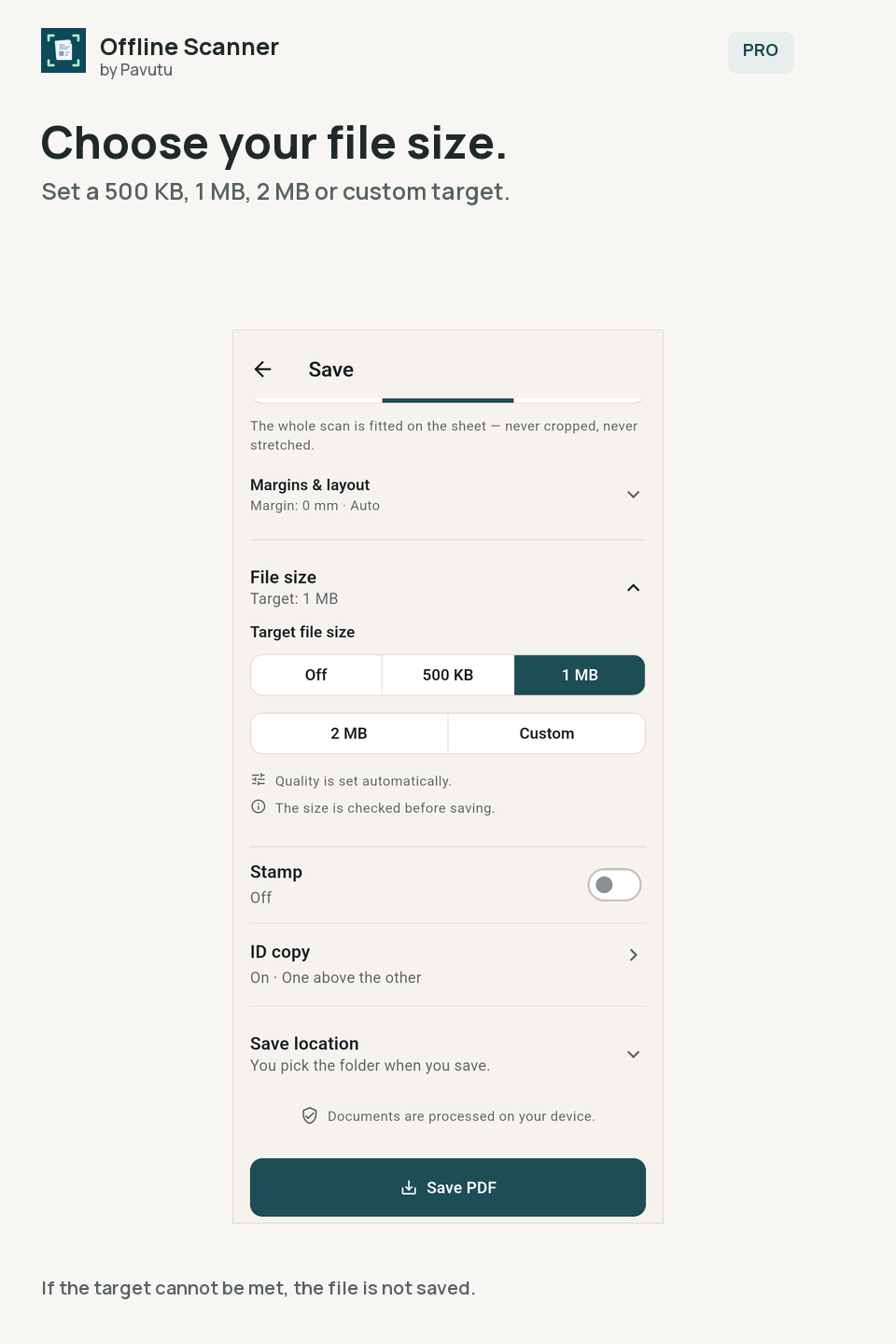
Target file size
Choose 500 KB, 1 MB, 2 MB or a target of your own. The app measures the file before saving; if the target can't be met, it doesn't save the file and tells you.
 (opens the larger image)
The file isn't saved if the target can't be met. -
PRO
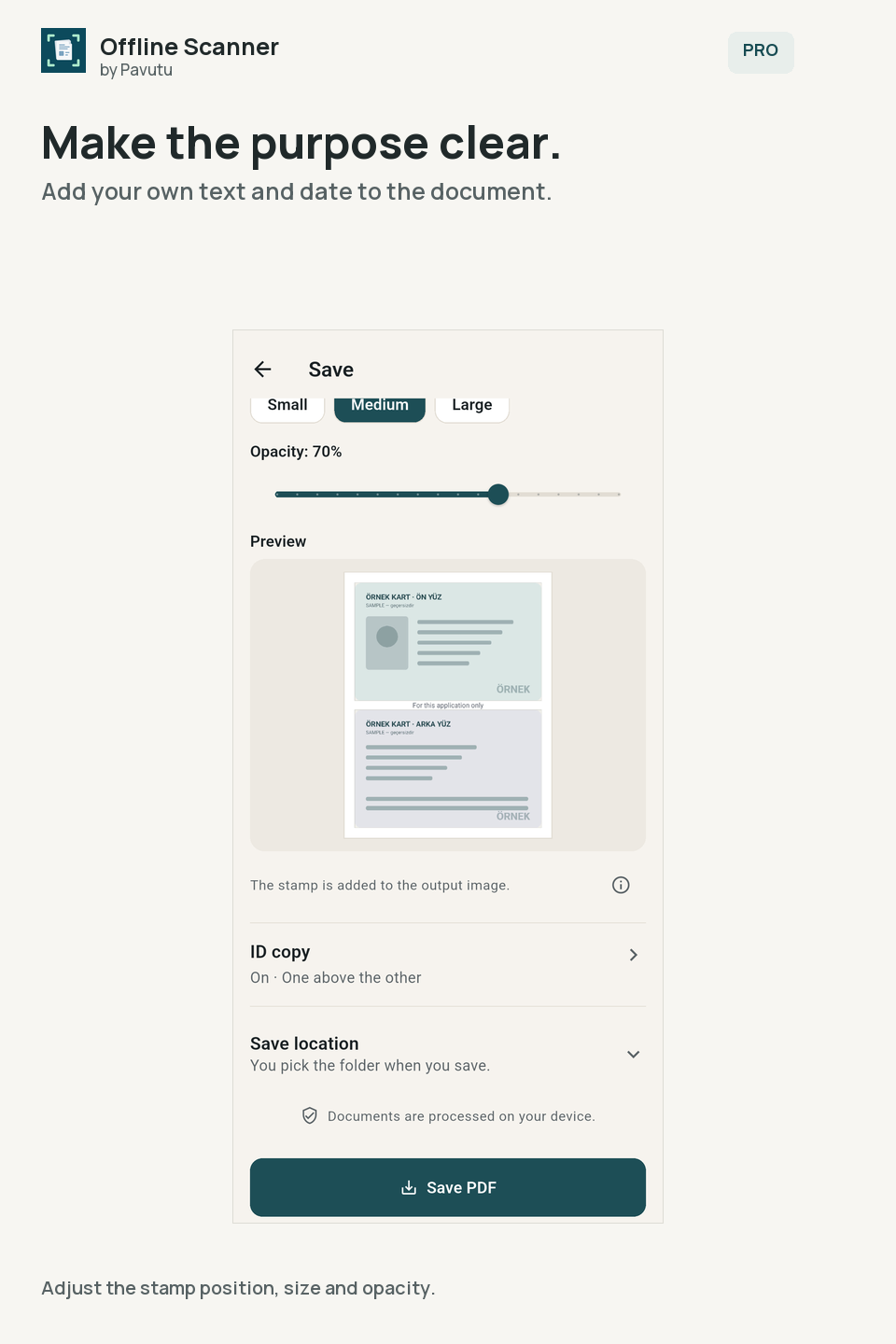
A stamp with your own text
Add your own text and the date to the document, and set its position, size and opacity. A stamp is only a note; it isn't a digital signature or a security feature.
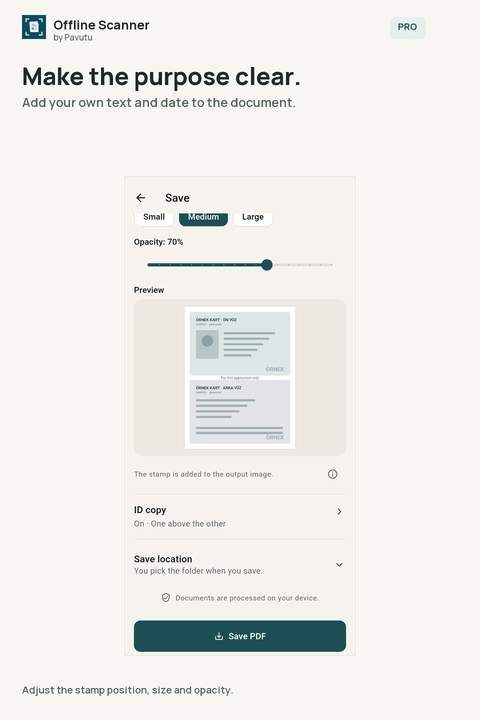 (opens the larger image)
Your own text and the date. -
PRO
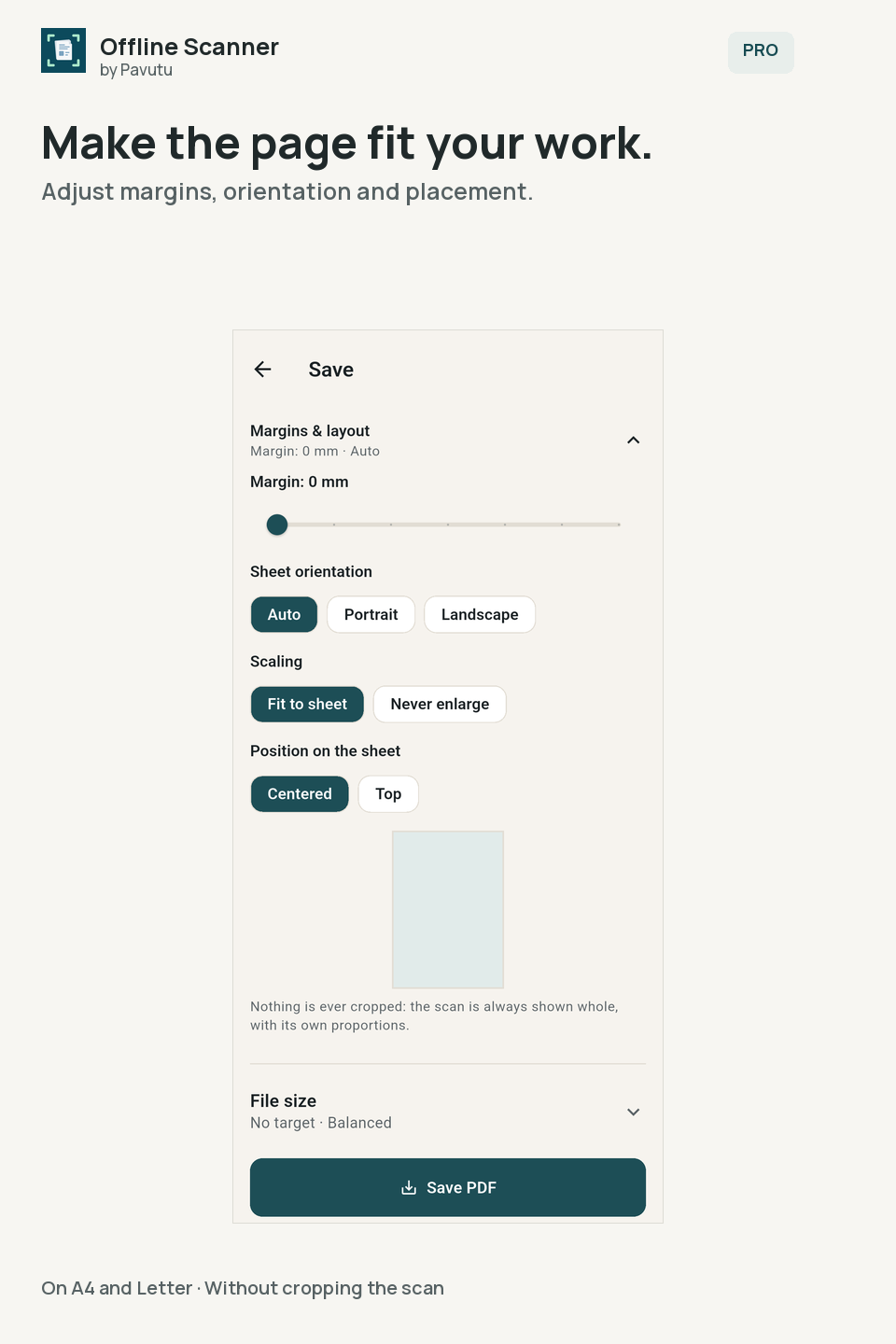
Margins and placement
On an A4 or Letter page, set the margins, the orientation and where the scan sits on the page. The scan isn't cropped.
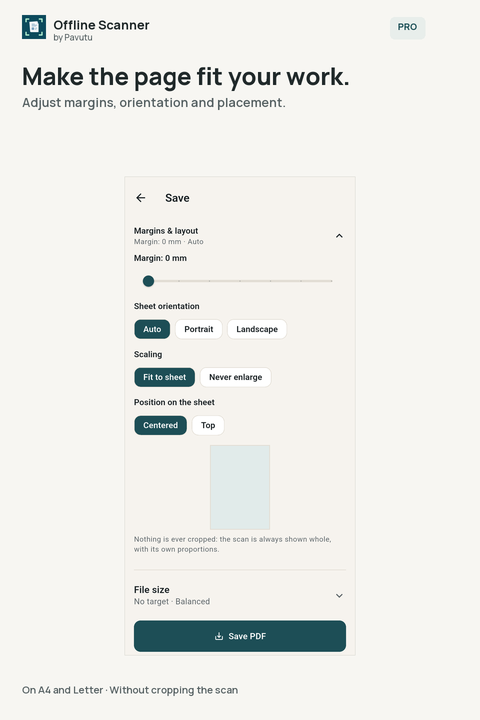 (opens the larger image)
Margins, orientation and placement.
PRO also includes quality and size profiles (Small file, Balanced, High quality), a quick save folder and importing several images from your gallery at once.
Free and PRO
Free
Core scanning, always
- Camera capture or adding an image from your gallery
- Corner adjustment; Natural and Document looks
- Adding, rotating by 90°, reordering and deleting pages
- Multi-page PDF (Original, A4, Letter) and single-page JPEG
- File check after saving; open and share
- Recovering an unsaved document
- No ads and no watermark
PRO
Everything in the free version, plus:
- Both sides of a card on one page
- Target file size
- A stamp with your own text
- Margins, orientation and advanced placement
- Quality and size profiles, quick save folder
- Importing several images from your gallery at once
PRO (Lifetime PRO in the app) is a one-time purchase through Google Play, with no subscription. The app is in a closed test at the moment, so there is no public purchase yet.
Platform and privacy
Platform
Offline Scanner is an Android app for phones (Android 7.0 or later). It is in a closed test on Google Play; there is no public download yet. There is no Windows or iOS version.
The app's interface is in English, Turkish and Spanish. For questions, email support@pavutu.com.
- Android 7.0+
- Interface: English · Turkish · Spanish
Privacy
No account, no ads and no analytics. Pages are processed on your phone, and the documents you scan aren't sent to Pavutu. An unsaved document is kept only on this device, for recovery, and isn't included in Android backups.
What it doesn't do
There is no text recognition (OCR) and no searchable PDF; the output is image-based. There is no cloud sync and no in-app backup; you keep your files where you choose.
FAQ
Is it free?
Core scanning is free, with no ads: capture, corner adjustment, the Natural and Document looks, page editing, multi-page PDF and single-page JPEG. PRO is an optional, one-time extra.
Can I download it from Google Play?
Not yet. Offline Scanner is in a closed test on Google Play, and there is no public download link.
Does the target file size always work?
No. The app tries to bring the file down to the size you choose and measures it before saving. If the target can't be met, it doesn't save the file and tells you, so you can pick another target.
Does a stamp make a document signed or secure?
No. A stamp is text added to the page image. It isn't a digital signature, and it doesn't stop the document from being changed or copied.
If the app closes, do I lose my document?
If there are unsaved changes, the app asks whether to restore the document when you open it again. The draft is kept in the app's own storage, isn't included in Android backups or device transfers, and is removed when you save or delete it. The very last change may not always be recoverable, so remember to save important documents.
Where are my scans stored?
Where you save them. You choose the folder or file with your phone's file picker, and the app writes only there. The app has no cloud sync or backup of its own.
Do I need an account or an internet connection?
No. There is no account, and scanning and saving work offline. The internet is used only to buy, check or restore PRO through Google Play.
Does it have text recognition (OCR)?
No. Offline Scanner creates image-based PDF and JPEG files; it doesn't recognise text or make searchable PDFs.
Which languages does the app support?
The interface is in English, Turkish and Spanish. The app can follow your system language, or you can choose one in Settings.
Can I use it on an iPhone?
No. Today there is only an Android version.
Pavutu's other tools
Pavutu's other tools: Static QR for creating QR codes, Cut Planner for sheet cutting plans, Pavutu İş Araçları for quotations and receipts, and Pavutu Öğretmen for teacher salary and extra-lesson pay in Türkiye. See all our tools →